
Want to migrate from BigCommerce to WooCommerce, but don’t know where to start? This guide will give you a clear path today.
BigCommerce is a good website builder for startups and small businesses. But over time, it has some limits of scalability with this platform.
Whether you notice:
- Increasing cost with revenue growth
- Requirement of advanced product customization
- Complex pricing models
- Heavy Dependence on multiple third-party apps
- Slow Performance
- Limited control
- SEO limitations
With the BigCommerce to WooCommerce migration, you are on the right path to get unlimited customization, complete ownership, and zero platform cost increment as the business grows.
Before jumping into the migration process, you need to know that if you are non-technical, then you should connect with the experts or a professional WooCommerce development agency. Because a single migration error can cause you big trouble. So, it’s better to go with the safer option to protect your business in the long run.
For all the tech-savvy people, here is the clear and structured process of Migration into WooCommerce.
Professionals Process of Migrating from BigCommerce to WooCommerce
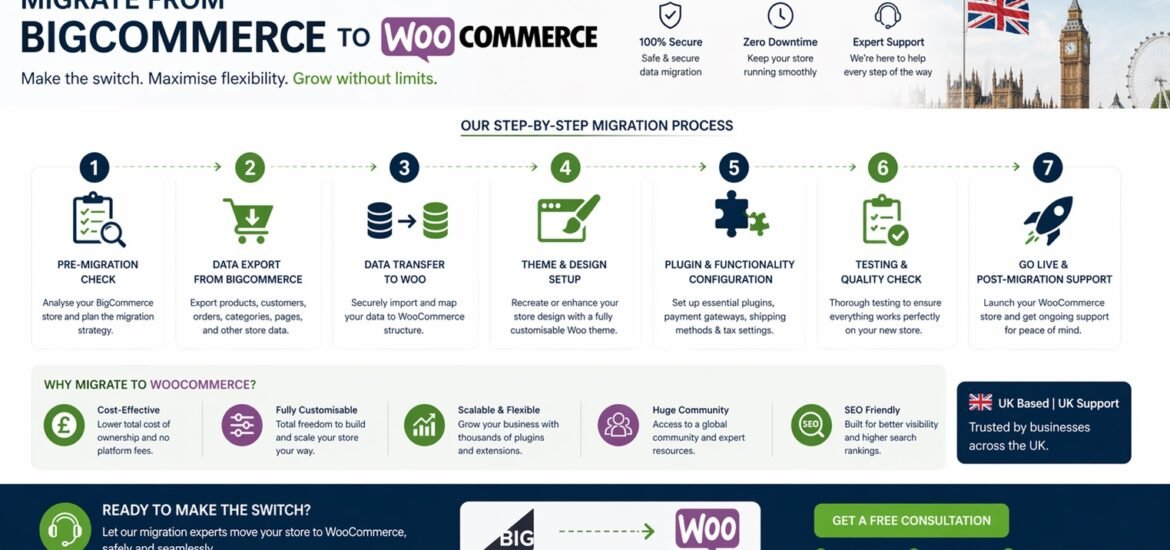
For DIY, here is the migration workflow that a WooCommerce development company uses to migrate any website without missing any data.
Step 1: Plan the Migration
Mapping how each BigCommerce field will correspond inside WooCommerce is the first thing that a skilled WooCommerce development company does. So, before touching any data of your eCommerce store, you need to create a migration blueprint.
You need to audit your BigCommerce store and document:
- Product catalog
- Categories and subcategories
- Customer accounts
- Order history
- Coupons and discounts details
- Blog content
- URLs and SEO metadata
This step prevents missing data later. Many businesses rush and later discover their reviews, images, or variants never transferred.
Also Read: Top 5 WordPress Support Services Features Every UK Business Should Expect
Step 2: Configure WordPress and WooCommerce
To migrate your BigCommerce eCommerce site into WooCommerce, you need to buy a good hosting service and install WordPress init. Once you’re done with the WordPress setups, now it’s now time to add the WooCommerce plugin. WooCommerce plugin allows you to transform a simple wordPress site into an easy to manage eCommerce store. During setup process of this plugin, you need to update these informations:
- Configure currency
- Set tax rules
- Configure shipping zones
- Create payment gateways
This creates the foundation where your migrated data will live.
Step 3: Export Data from BigCommerce
From the BigCommerce dashboard, export store data in CSV format.
You should export:
- Products
- Product images
- Customers
- Orders
- Categories
- Reviews (if available)
Keep these files organized in folders. Label them clearly. Clean files save hours during import.
Also download your website images and blog content manually. Some media files do not automatically map during migration.
Step 4: Prepare and Clean the Data
This is the most technical step.
BigCommerce and WooCommerce store data differently. Fields such as product variants, attributes, and SKUs require reformatting.
Common adjustments include:
- Matching category slugs
- Formatting product variations
- Correcting attribute columns
- Standardizing image URLs
Poor formatting causes broken products or missing inventory.
Many businesses rely on WooCommerce development services in India for this step because developers understand database structures and CSV mapping rules.
Also Read: How to Choose the Right WordPress Support Services in the UK
Step 5: Import Data into WooCommerce
In the eCommerce store, you know there are so much data you have to deal with. That’s why, no matter whether you’re migrating from WooCommerce to BigCommerce migration or from BigCommerce to WooCommerce. You have to special care the data import phase to set up an error free website for your eCommerce website.
In case of BigCommerce to WooCommerce migration, use WooCommerce’s built-in importer or a migration tool.
Import in the following order:
- Categories
- Products
- Customers
- Orders
- Reviews
After importing:
- Check product images
- Verify product variations
- Confirm stock levels
- Validate pricing
Never launch before checking random products manually.
Step 6: Migrate Design and Theme
BigCommerce themes cannot be transferred directly. The design must be recreated using a WooCommerce-compatible theme.
Here you can:
- Replicate the old layout
- Improve UI/UX
- Optimize mobile experience
- Improve checkout flow
Most companies treat migration as a redesign opportunity. WooCommerce allows much deeper customization than BigCommerce.
Step 7: Preserve SEO
This is where many migrations fail. As search engines have already indexed your BigCommerce URLs. SE bots crawl them from time to time to update the information. But some URLs might be missed during the migration process. And this is a big risk. Because when a bot came to your old url, it found nothing. As a result, it marks your site as a suspicious one as well as reduces your ranking on SERPs.
That’s why you need to add 301 redirects. This will redirect your old URL to the new one. Important items to preserve:
- Product URLs
- Category URLs
- Meta titles and descriptions
- Blog URLs
Proper redirect mapping ensures users and Google land on the correct pages after migration. Without it, traffic collapses within days.
Step 8: Test the Store Completely
Before going live, run a full test.
Check:
- Checkout process
- Payment gateway
- Shipping calculation
- Email notifications
- Mobile responsiveness
- Page speed
Also, place test orders using different payment methods. These tests allow you to find all the loopholes that can give a bad experience to your website visitors.
Also Read: 10 Best WordPress Website Maintenance Services in the UK
Step 9: Go Live and Monitor
After testing:
- Point your domain to the new WooCommerce store
- Clear caches
- Submit the sitemap to Google Search Console
- Monitor traffic and errors
For two weeks, monitor:
- 404 errors
- Checkout failures
- Missing products
- Broken images
Even a perfect migration needs post-launch observation.
Final Thoughts
A store migration from BigCommerce to WooCommerce is not just about shifting technology but it’s a most essential investment decision. So, you need to be very careful with this one. When you give this task to inexperienced or DIY then you might end up with SEO damage, revenue losses, as well as loss of your customer trust. On the other side of the story, when you give this to experienced developers, they will unlock scalability, customization, and solid authority for your business.
That’s true, BigCommerce works well for beginners. Similarly, WooCommerce works best for growing businesses that want control. So, based on your business, whether you want WooCommerce to BigCommerce migration or BigCommerce to Commerce migration, having an expert by your side is a great idea.
You can hire an experienced WooCommerce development company who understands your current issues and website. After that, provide you with a seamless migration solution to make it a better version. As you know, migration is not about moving a website. It is about moving your business safely into its next growth stage.